
Introduction
- There are two ways to install
Bareunon macOS. - Choose one of the two installation methods and follow it step by step.
Bareunruns as a server, so it does not provide a tool that users can see on screen. Instead, you can check the server status simply through a web page.
Installing with the installer (.pkg)
- Download the file from bareun.ai.
- The downloaded file has the .pkg extension.
- Run the downloaded file.
Installation steps
(1) Grant permission
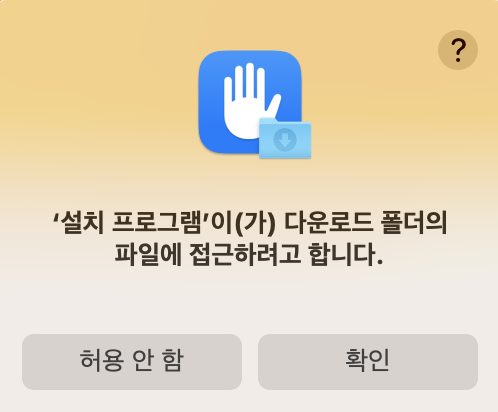
- Grant permission to run the installer.
(2) Start installation
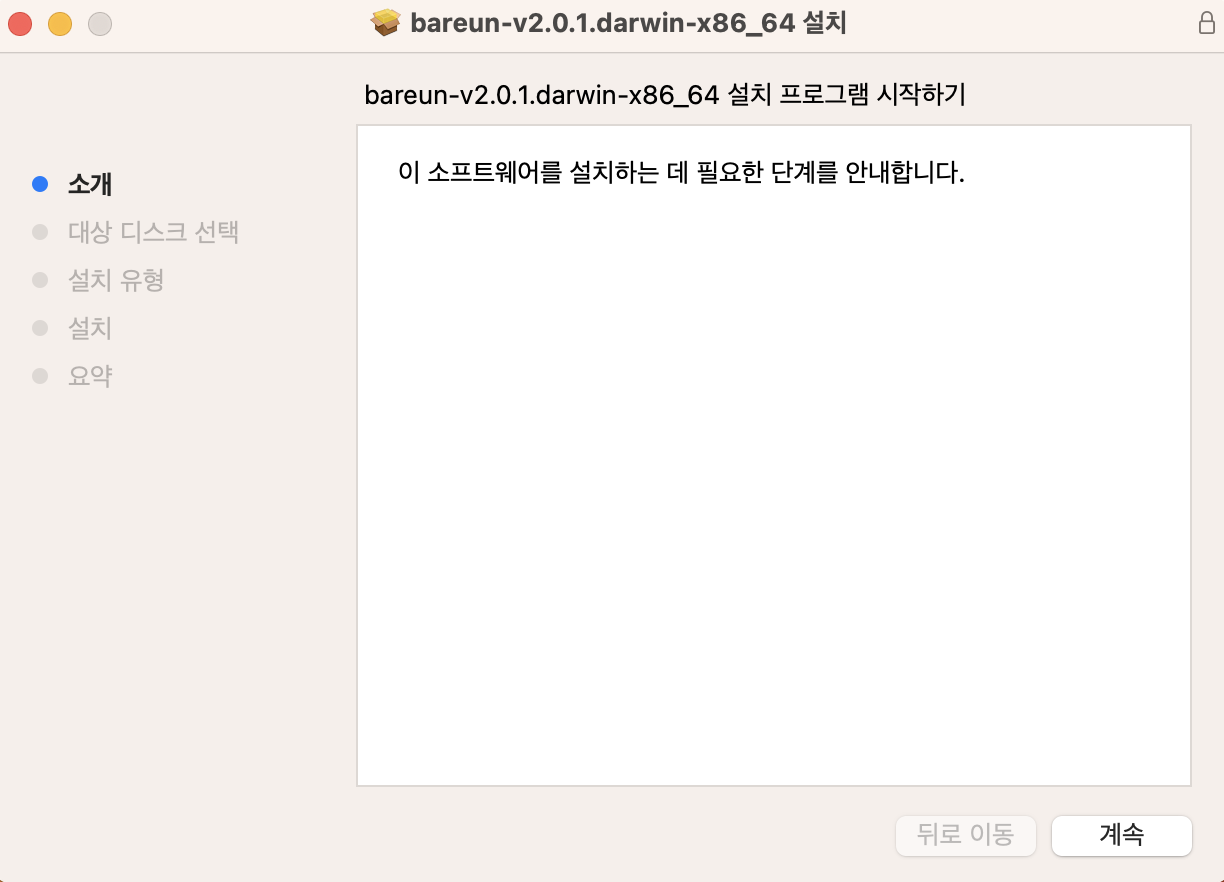
- Click the Continue button to go to the next step.
(3) Choose the install location
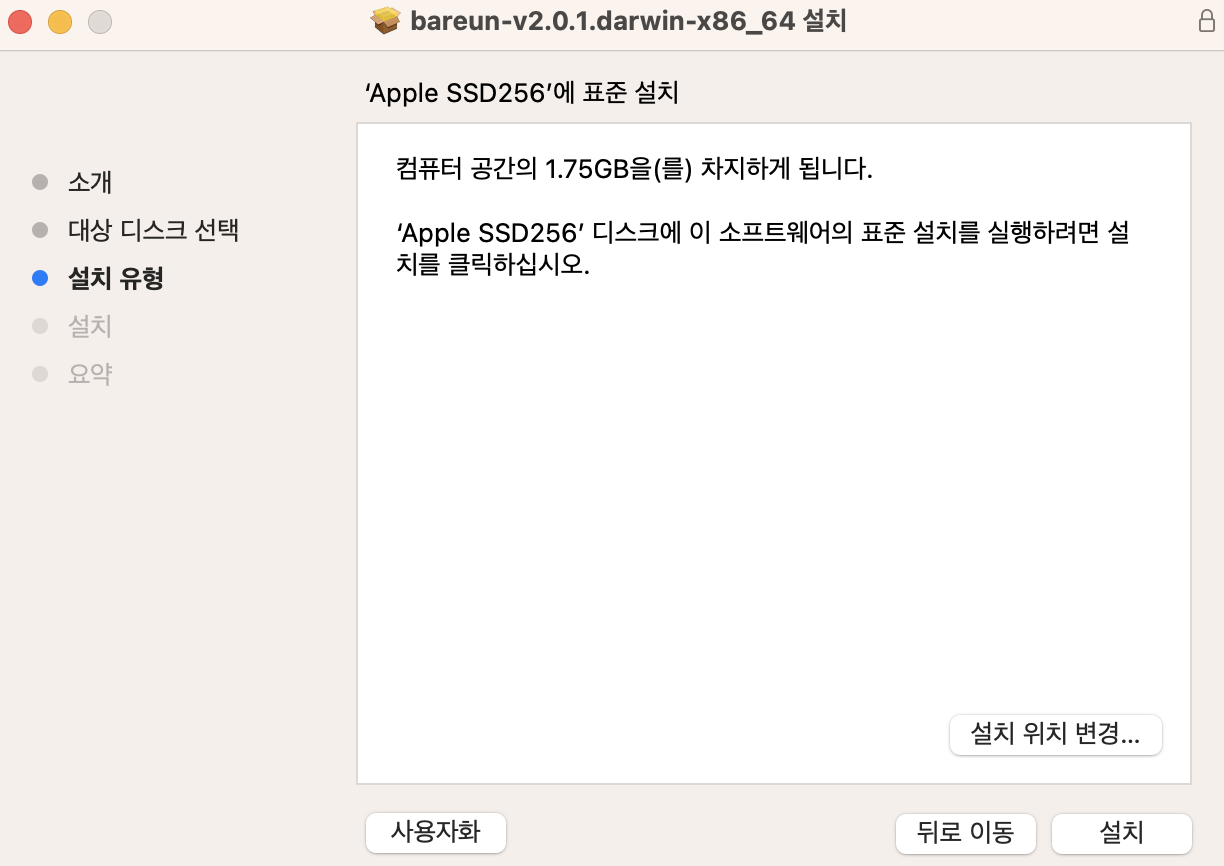
- Click the Install button to install in the default location.
- (Bareun must be installed in the '/Applications' path.)
(4) Enter your password
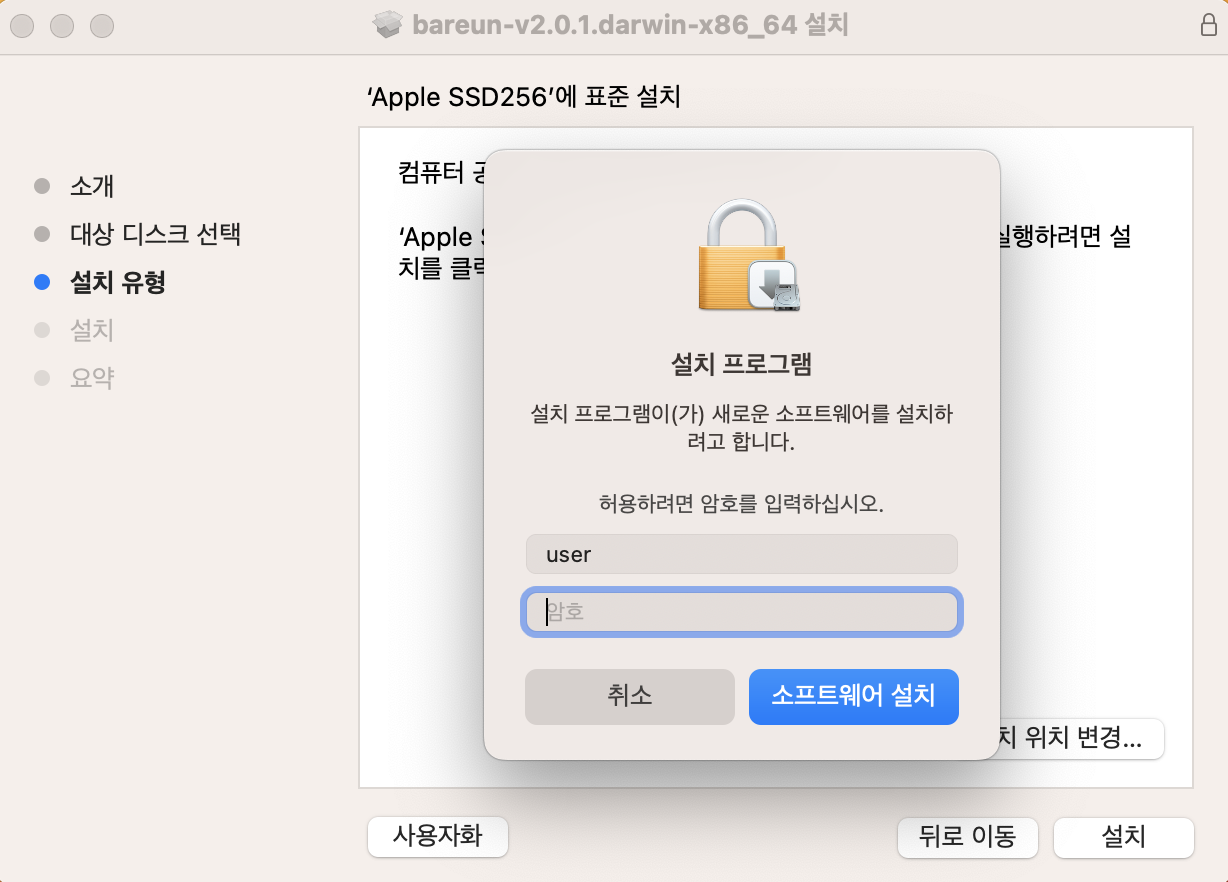
- Enter your user account password to continue the installation.
(5) Installation in progress
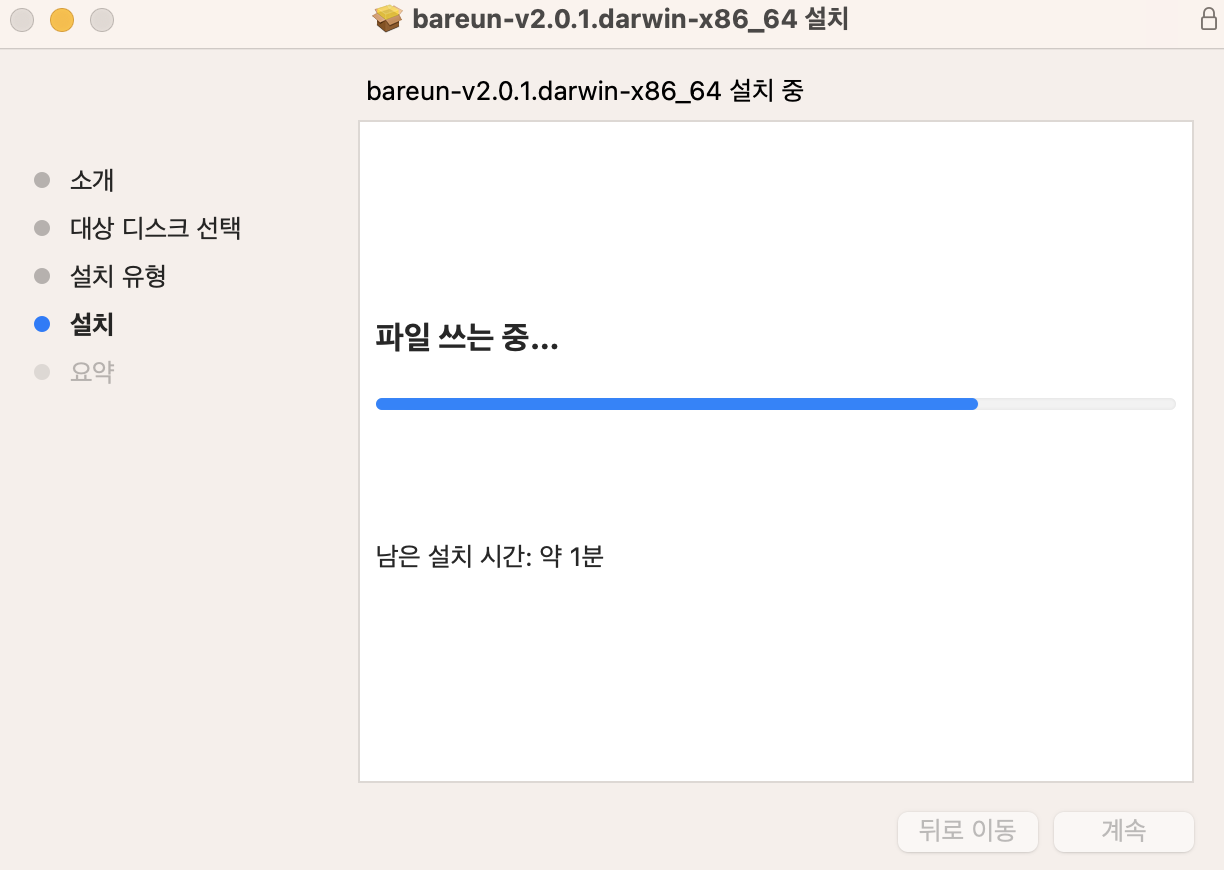
- The installation proceeds in about 1 minute.
(6) Installation complete
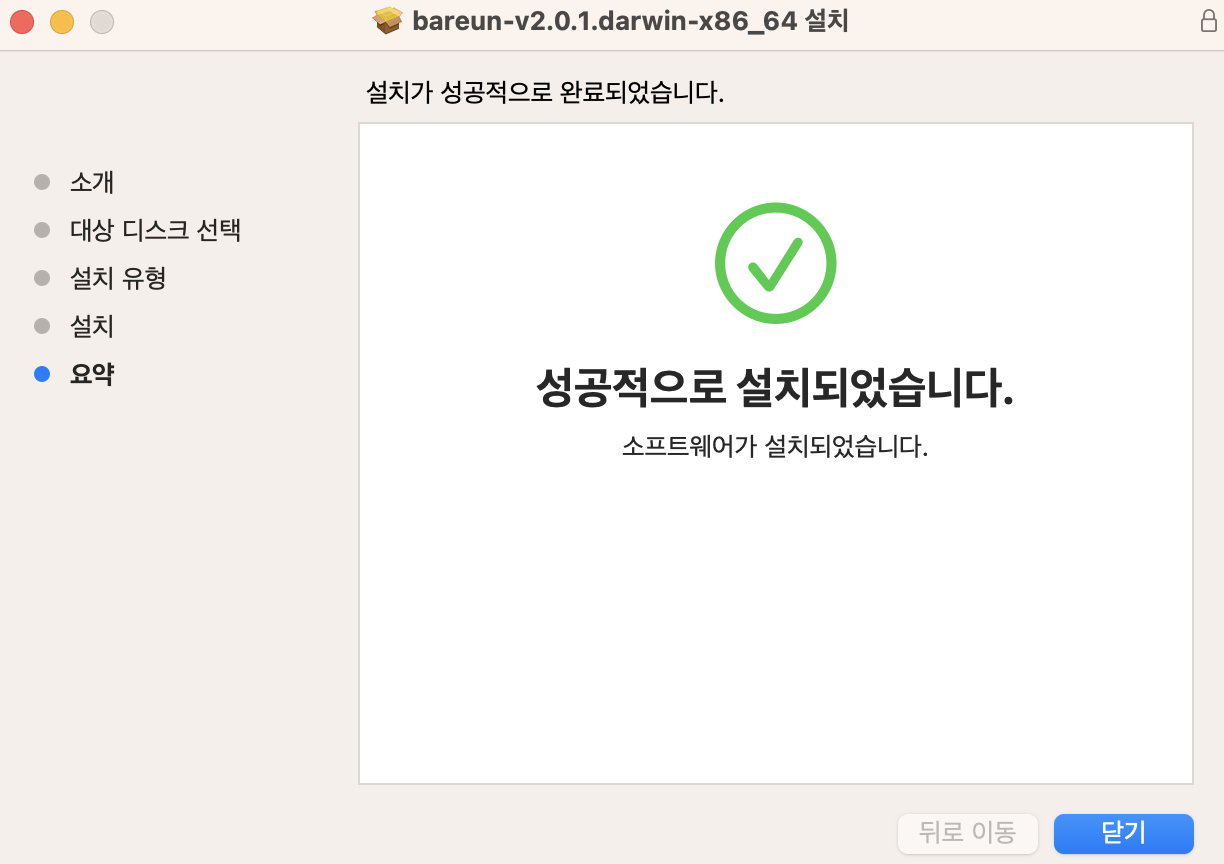
- The installation is complete.
Checking that the service is running
- The service starts automatically as soon as the installation finishes.
- In macOS Spotlight (shortcut
Command+Space), search forActivity Monitor(활성 상태 보기in a Korean UI) and open it. - If you search for
bareunat the top right, you can see that the server is running normally, as in the figure below.

Registering the API key
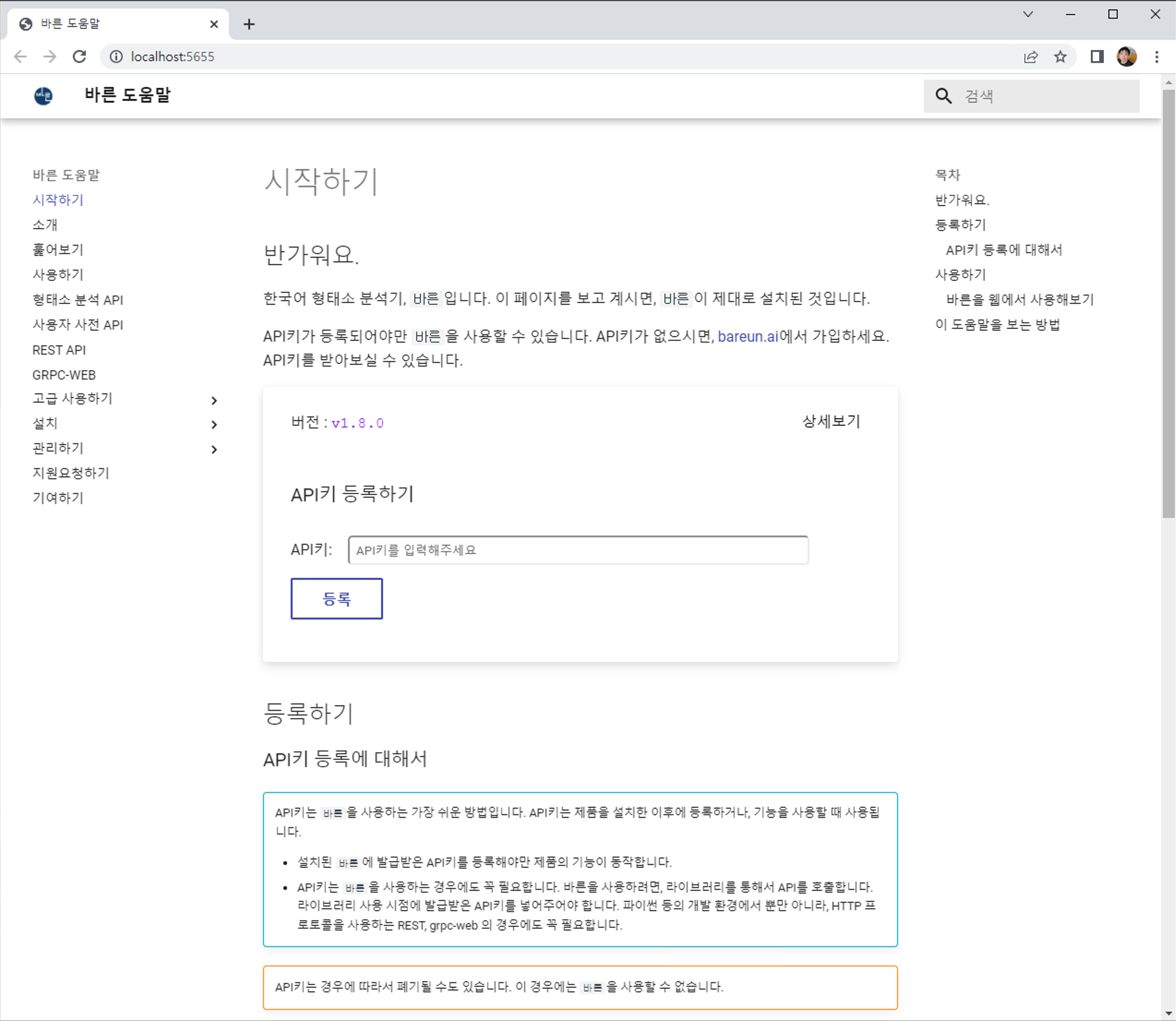
- If the service started automatically, you can connect to
http://localhost:5656. - After signing up, register the API key you were issued, and you are ready to use
Bareun.
Controlling the service (bareunctl)
macOS LaunchDaemon does not provide a GUI like Windows' services.msc by default,
so the installer also installs a CLI helper called bareunctl.
Right after installation, you can use the following commands without any extra setup.
sudo bareunctl start      # start the daemon
sudo bareunctl stop       # stop the daemon
sudo bareunctl restart    # restart the daemon
bareunctl status          # check status (no administrator privileges needed)
bareunctl logs            # follow the latest logs in real time (exit with Ctrl+C)
The bareunctl executable is in /Applications/bareun.app/Contents/Resources/bareunctl,
and /usr/local/bin/bareunctl is a symbolic link pointing to it.
Control by double-clicking instead of the terminal
In Finder, right-click /Applications/bareun.app → Show Package Contents →
and double-click one of the following files in the Contents/Resources/control/ folder; Terminal
opens, asks for your sudo password, and performs that action.
If you use them often, copy them from Finder to the desktop or elsewhere so you can run them in one click.
bareun-start.commandbareun-stop.commandbareun-restart.commandbareun-status.command
Stopping the service and removing the program
The full procedure, including the installation record (pkgutil) and leftover data, is described in Uninstalling Bareun.
- If you installed with the installer and ran the service, the service starts automatically on reboot.
- To stop the service temporarily, use
sudo bareunctl stopabove. - For compatibility with earlier versions, or in environments without
bareunctl, you can also calllaunchctldirectly.
sudo launchctl bootout system/ai.baikal.bareun
- To remove the
Bareunprogram from macOS, create a script file nameduninstall-bareun.sh.
touch uninstall-bareun.sh
- Paste in the following content.
#!/bin/sh

# Stop and remove the service
sudo launchctl bootout system/ai.baikal.bareun
sudo rm "/Library/LaunchDaemons/ai.baikal.bareun.plist"


pkg_identifier="ai.baikal.bareun"
sudo pkgutil --files $pkg_identifier

# Specify the folder paths to delete.
APP_DIR="/Applications/bareun.app"
LIB_DIR="/Library/Application Support/bareun"

# Check that the folders exist and delete them.
if [ -d "${APP_DIR}" ]; then
    echo "Deleting ${APP_DIR} and its contents..."
    sudo rm -rf "${APP_DIR}"
    echo "Deleted ${APP_DIR} successfully."
else
    echo "${APP_DIR} not found. It may have already been deleted."
fi

if [ -d "${LIB_DIR}" ]; then
    echo "Deleting ${LIB_DIR} and its contents..."
    sudo rm -rf "${LIB_DIR}"
    echo "Deleted ${LIB_DIR} successfully."
else
    echo "${LIB_DIR} not found. It may have already been deleted."
fi
- Give the script file execute permission.
chmod +x uninstall-bareun.sh
- Run the script file and enter your administrator password.
./uninstall-bareun.sh
- This removes all the programs in the
Bareuninstallation root.
Restarting the service
- To restart the service manually, use
sudo bareunctl restart. - In environments without
bareunctl(for example, earlier versions or archive installs), enter the following.
sudo launchctl bootstrap system /Library/LaunchDaemons/ai.baikal.bareun.plist
Installing with the archive (.tar.gz)
The downloaded file has the .tar.gz extension.
The file name is bareun-v3.4.0.darwin-arm64.tar.gz.
Since 3.2.0 we no longer distribute for Intel Macs (darwin-x86_64); use the arm64 version on Macs with Apple silicon (M1 or later).
The version name changes to the latest version.
We explain installing in the user's home directory as the default.
cd ~
curl -OLJs -H "uname:$(uname -a)" https://bareun.ai/api/get
tar xvf bareun-v3.4.0.darwin-arm64.tar.gz
Installing with the commands above creates a folder named bareun-v3.4.0.
Starting the service
Setting environment variables
BAREUN_ROOT: the installation path, here $HOME/bareun-v3.4.0PATH: set theBareunexecutable path only if you accessbareunoften.
VER="v3.4.0"
echo export BAREUN_ROOT=$HOME/bareun-$VER >> ~/.bashrc
echo export PATH=$BAREUN_ROOT/bin:$PATH >> ~/.bashrc
. ~/.bashrc
Starting the service
The installation location is recorded in the environment variable BAREUN_ROOT.
nohup $BAREUN_ROOT/bin/bareun &
Managing the API key
Bareun includes commands for managing API keys.
$BAREUN_ROOT/bin/bareun -h

Usage of /Users/yourname/bareun-v3.4.0/bin/bareun:
  -cmd string
        Command to execute: print, prune.
  -keys
        Print API KEY status.
  -reg string
        Register this bareun with the API KEY.
  -unreg string
        Unregister previous API KEY.
Admin web and help
If you go to http://localhost:5656/ or http://YOUR-IP:5656/, you can see the admin web page.
Be careful, because no separate admin authentication is performed.
Testing the service on the admin web
You can use these two URLs to try various services.