
Introduction
When you install on Microsoft Windows too, Bareun is installed as a server.
Because Bareun runs as a server, it does not provide a tool that users can look at on screen.
Instead, you can easily see the server's status through a web page, which is explained below.
Bareun runs as a Windows service.
Windows Service
A Windows service is an executable that runs for a long time and performs a specific function, and is not designed to require user interaction. A Windows service usually starts when the Microsoft Windows operating system starts up, and keeps running in background mode as long as Windows is running. (From Wikipedia)
Install with the installer
Download
- Download from bareun.ai.
- Run the downloaded file right away.
Arm64 Windows version
Bareun supports arm64 Windows environments too since 3.2.0.
With the switch to the ONNX Runtime library, it also runs correctly in arm64 environments.
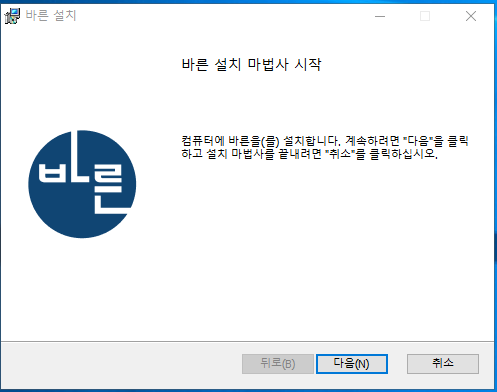
Start the installation
-
Start the installation Run the downloaded MSI file.
-
Accept the license
Read the end-user license agreement, check the box to agree, and click
Next.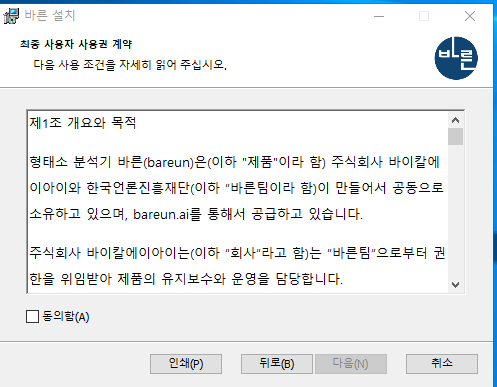
-
Choose the installation folder
Choose the folder where Bareun will be installed. The default path is
C:\Program Files\bareun.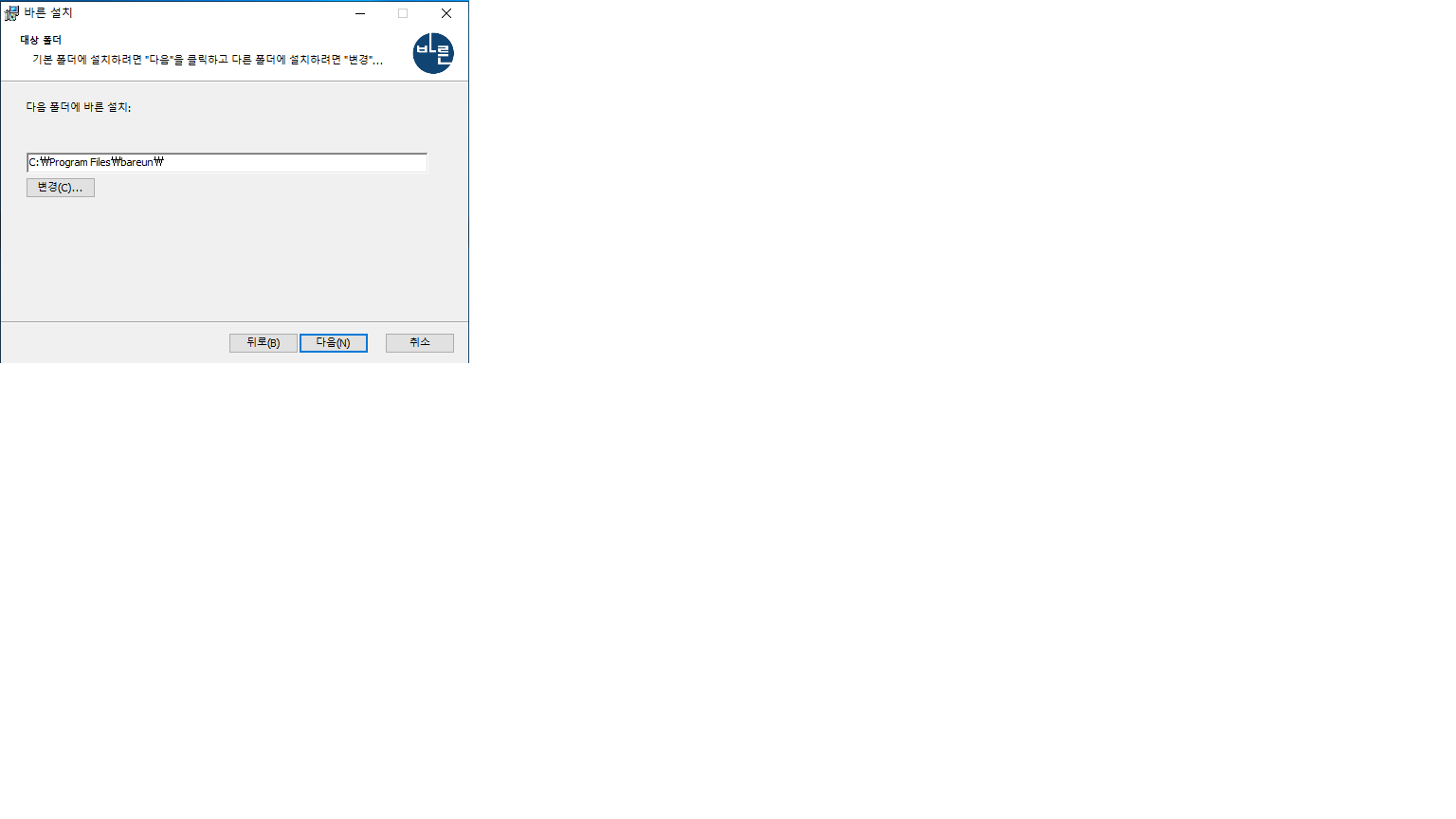
-
Ready to install and start
The installation is ready. Click the
Installbutton to proceed.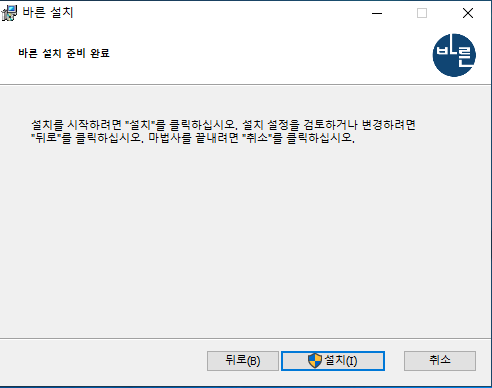
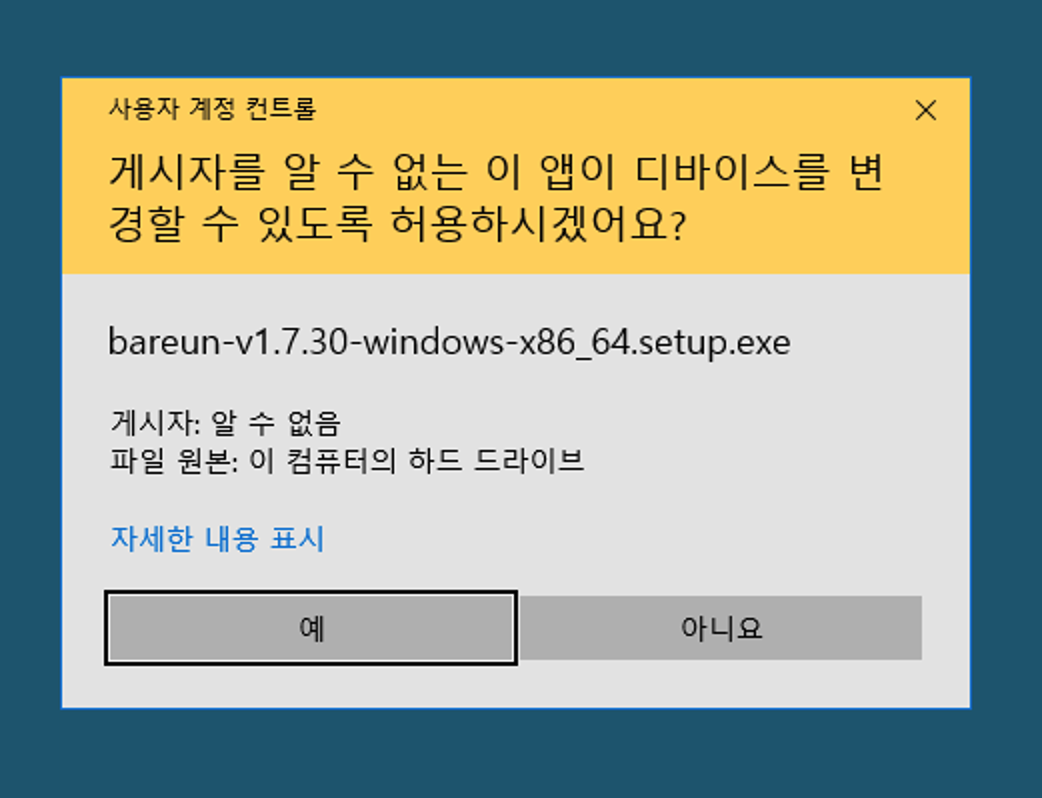
System permission request
During installation, it asks for system permission. This is because Bareun is installed as a system service by default. Bareun keeps running as a service after a restart.
-
Installation complete
The installation is complete. Click
Finishto close the installation wizard.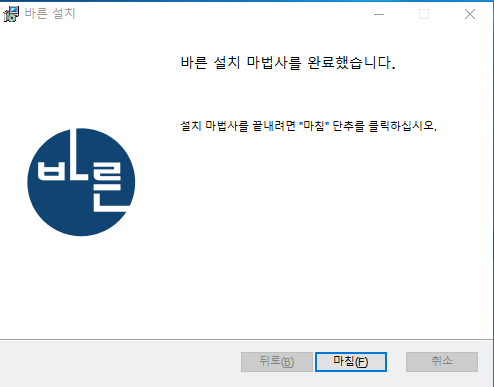
-
Check the installation result
When the installation is complete, you can see that files were created in the folder you specified (for example,
c:\Program Files\bareun).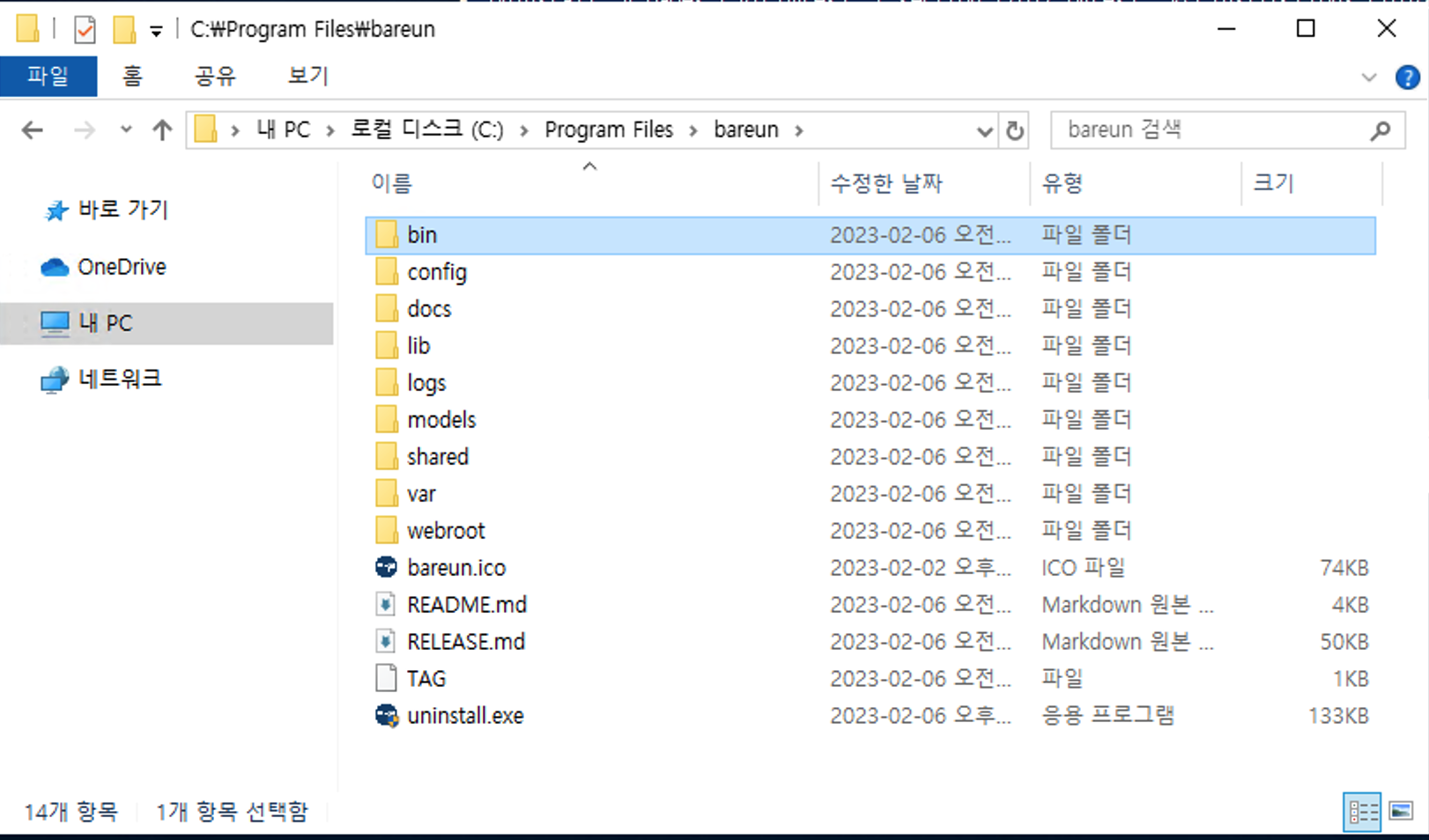
Also, the system environment variable
BAREUN_ROOTis set automatically.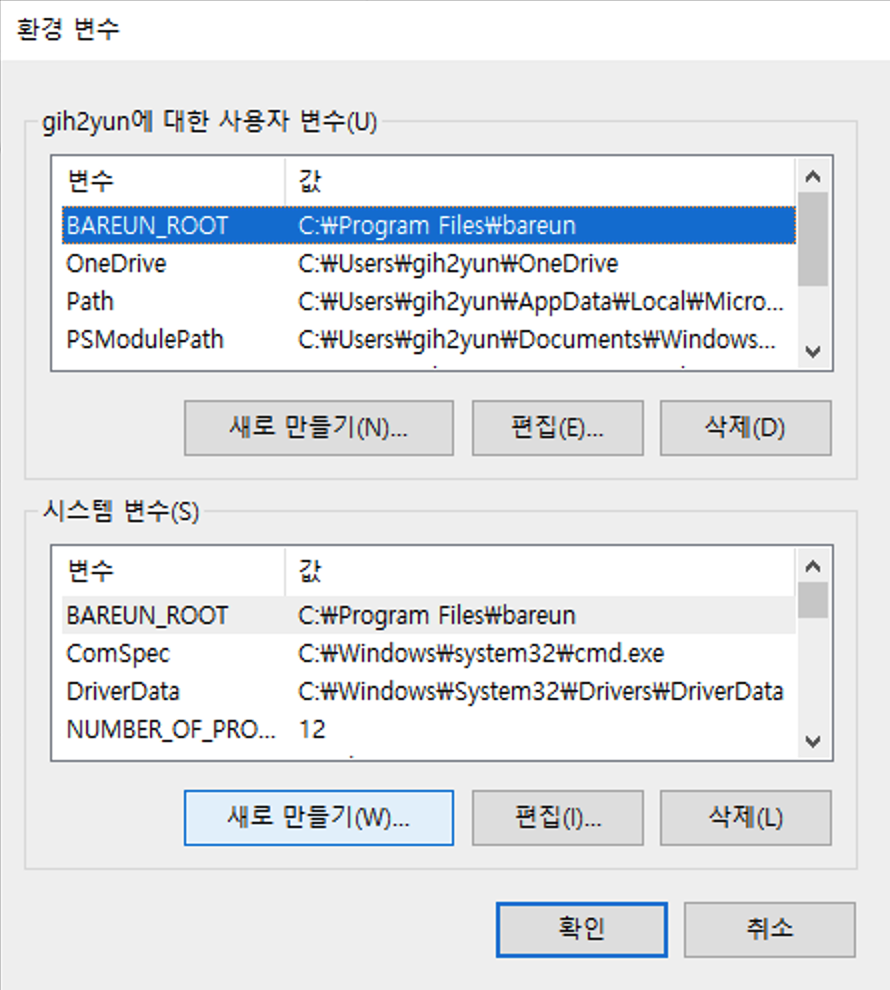
Updates
If you install the latest version, the update is installed automatically. If the Bareun service is already running, it asks for a reboot during installation. If you install the upgrade version with the Bareun service stopped, it is installed right away.
Manage Bareun
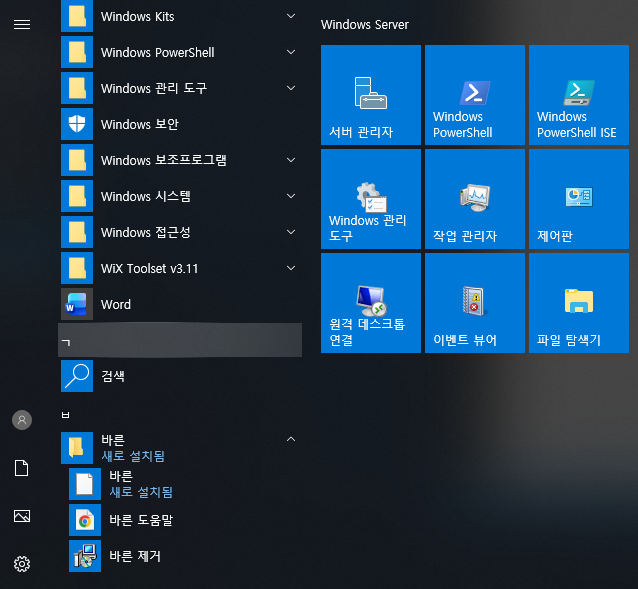
After you install the service, it is time to register your API key. In the Start menu, click 바른 도움말 ("Bareun Help") to open the help page.
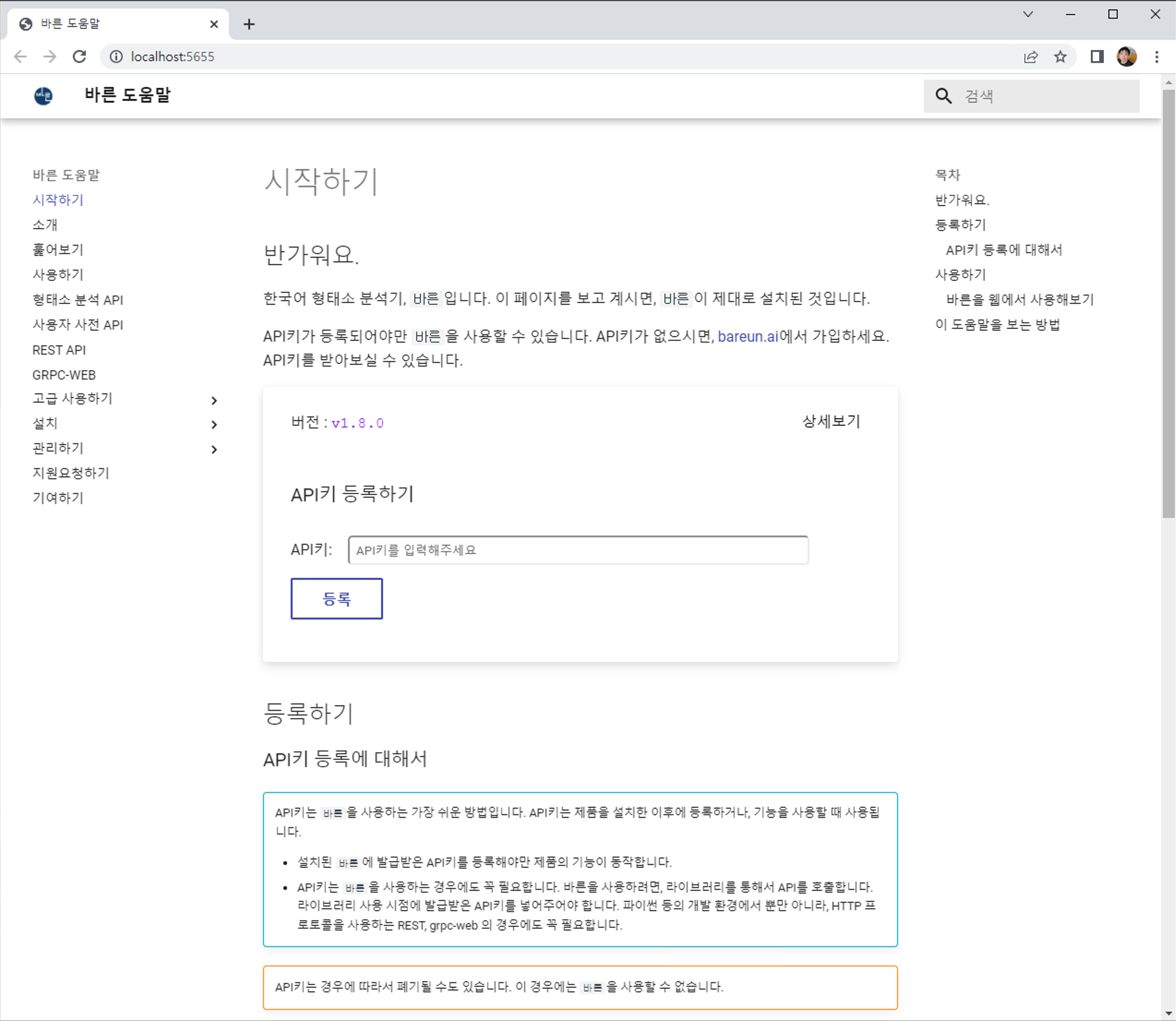
- Here you can see the screen showing that the service is installed. You can register your
BareunAPI key here. - The address of this URL is
http://localhost:5656.
Register the API key with a command
Instead of doing it on the web, you can also register the API key with a command.
Press ++win+r++, then type cmd to open a command window.
cd "c:\Program Files\bareun"
bareun -reg YOUR-API-KEY
Manage the Windows service
Press ++win+r++,
and when the Run window appears, type services.msc.
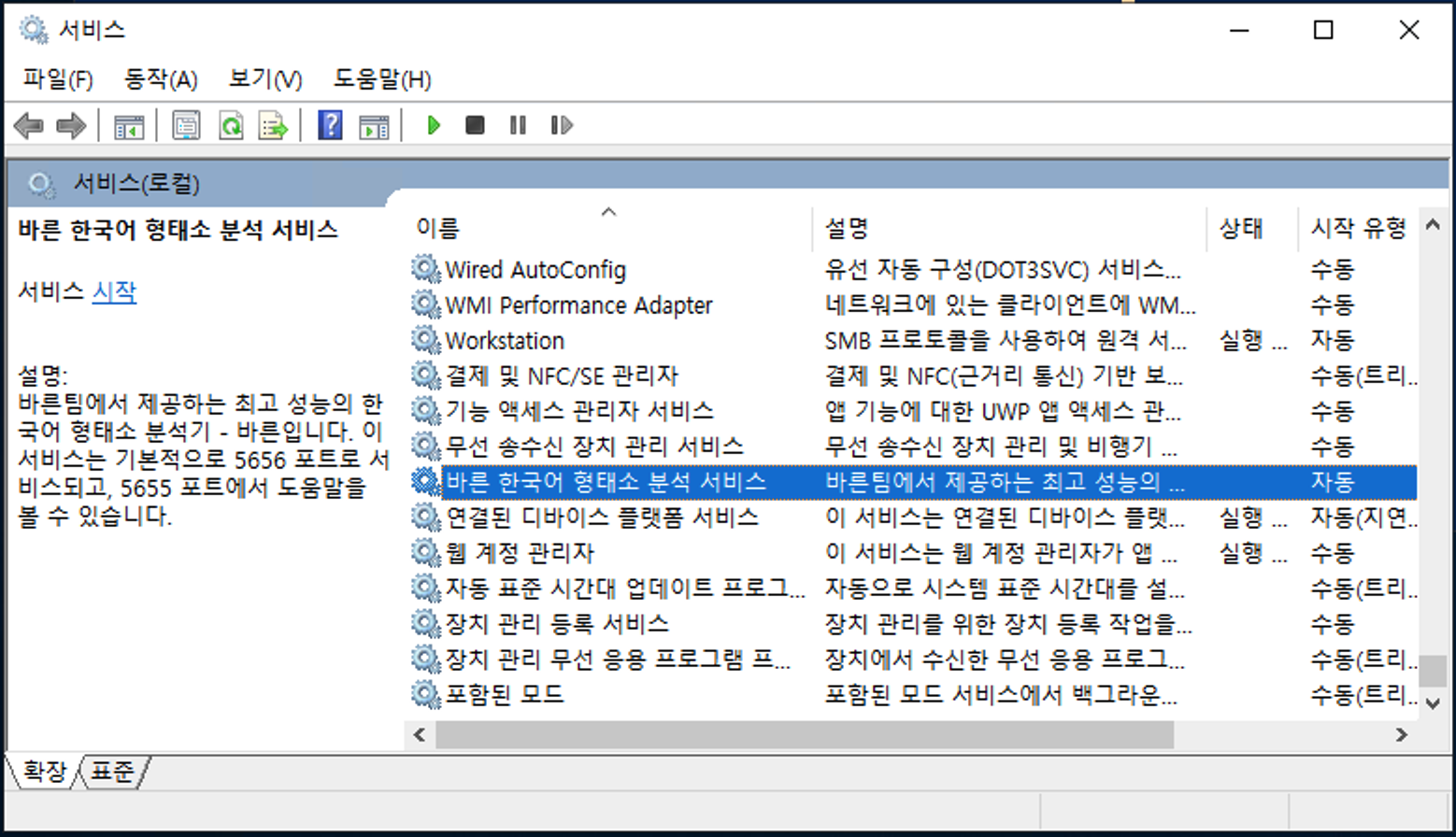
The Services window opens as shown below,
where you can see the list of services, their status and descriptions,
and perform various operations on services.
Here you can see 바른 한국어 형태소분석기 ("Bareun Korean Morphological Analyzer").
- To view the service properties, select
바른 한국어 형태소분석기, right-click, and choose thePropertiesmenu.
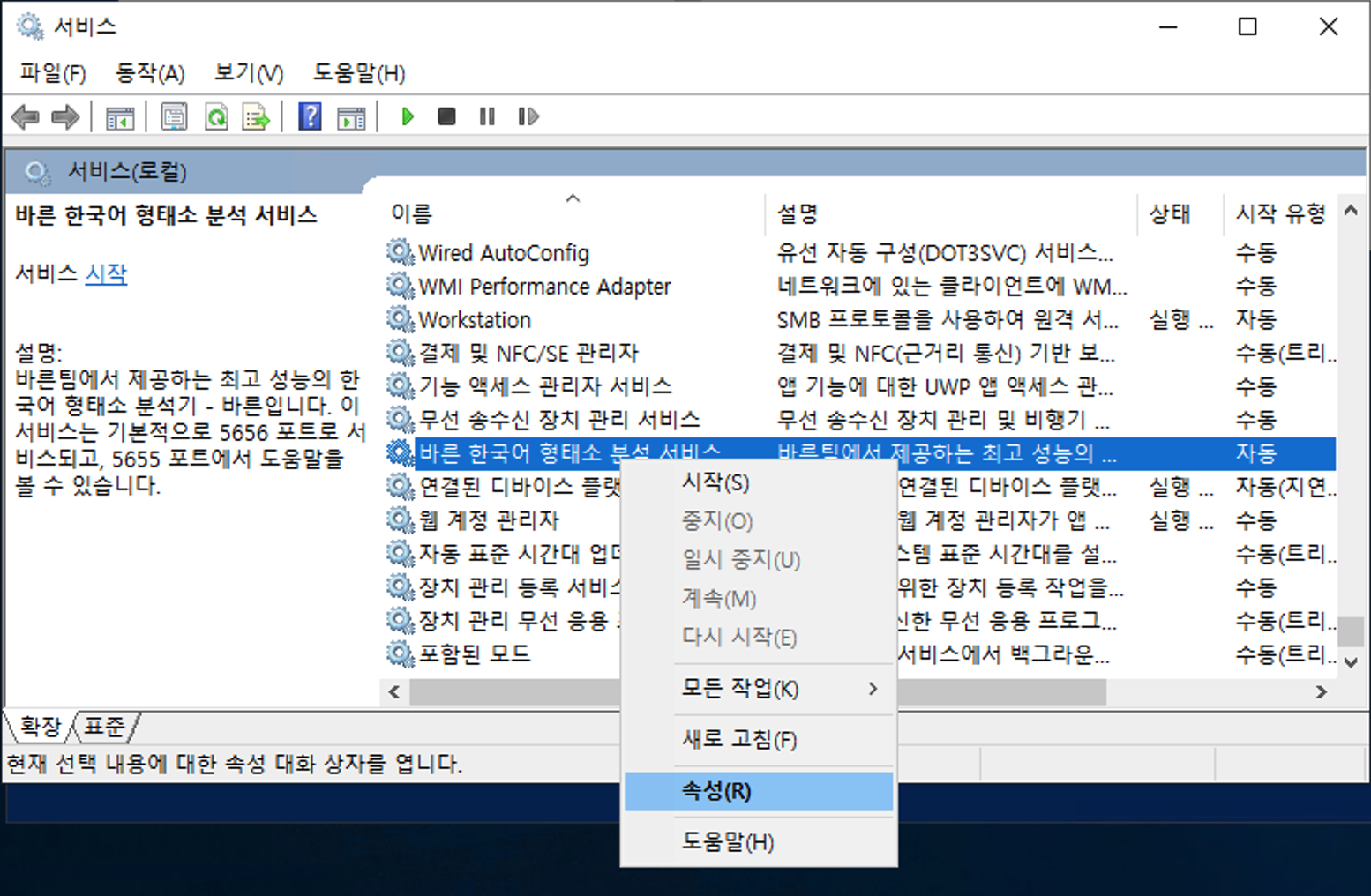
- The service properties are registered as follows.
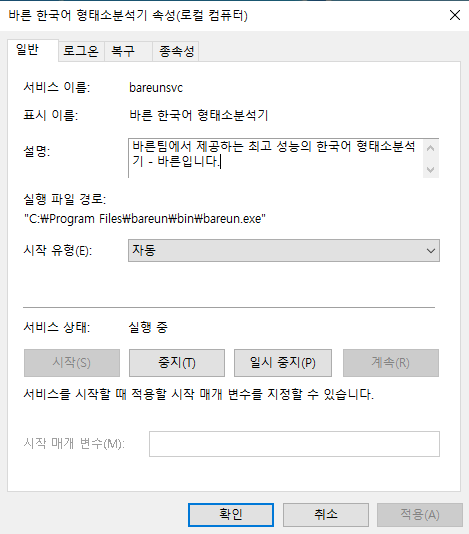
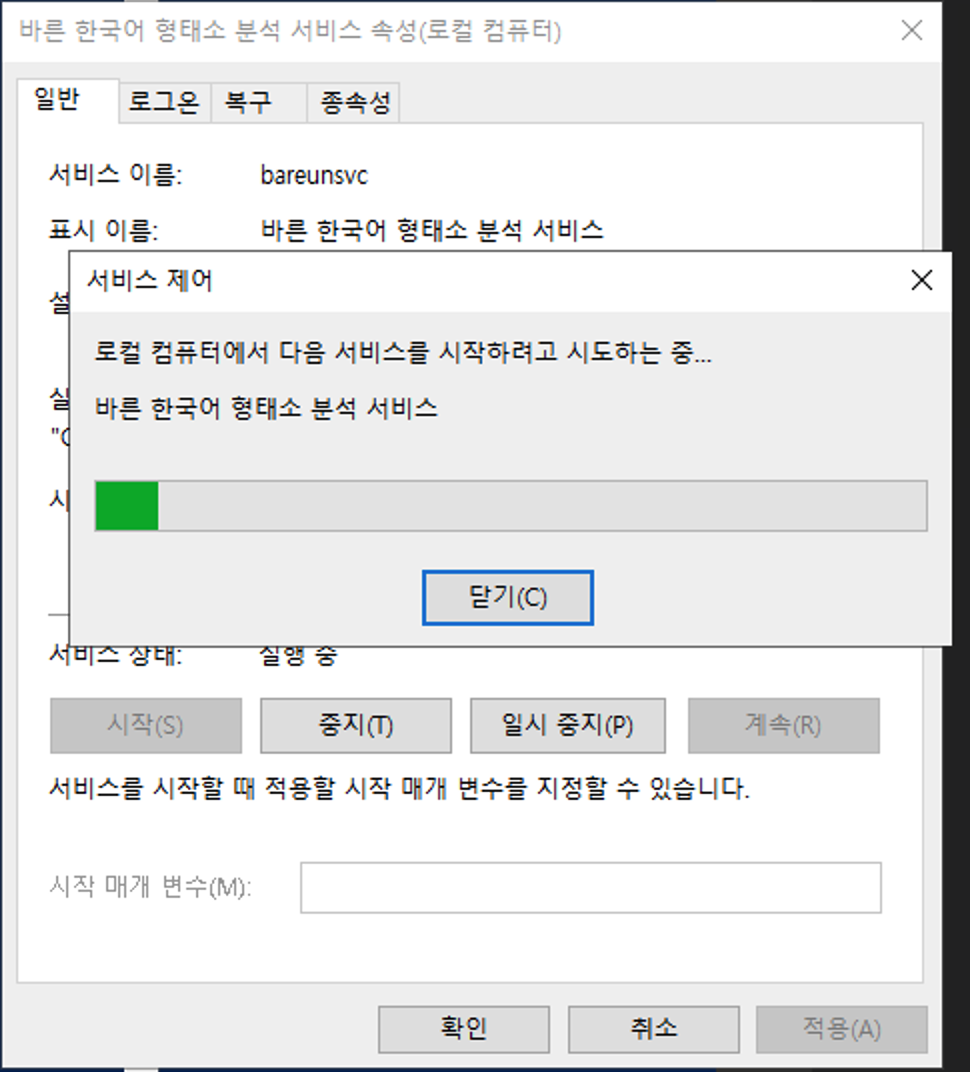
- On this screen you can stop or restart the service as needed. The figure below shows starting the service.
Uninstall Bareun
There are two main ways to uninstall Bareun.
Cleaning up the data left after removal and deleting a zip installation are explained in Uninstall Bareun.
- Click the Bareun uninstall button in the installed menu.
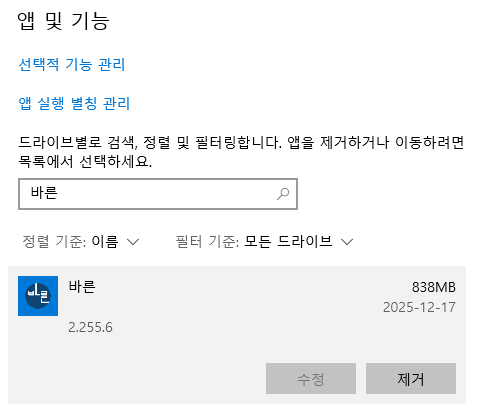
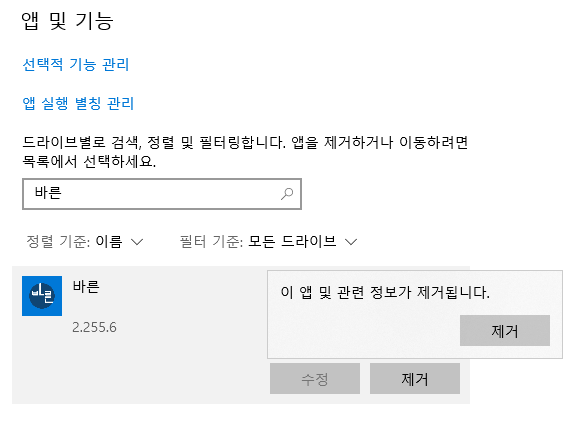
- Or find the app in system settings and uninstall it.
- Find the installed Bareun
- Uninstall
Note: If Bareun is running as a service, it asks you to restart after uninstalling. If you stop the service beforehand, you can uninstall right away.
Install from a zip
A zip is a way to install by extracting the files yourself. Just follow the steps below.
- Download
- Extract
- Set the environment variable
- Register the API key
- Run
- View the web help
Download
Press ++win+r++,
and when the Run window appears, type cmd and enter the following command.
curl -OLJs -H "uname: windows, %PROCESSOR_ARCHITECTURE%" https://bareun.ai/api/get
Extract
There should now be a bareun-v3.4.0-windows-x86_64.zip file.
Extract this file to a suitable location. A bareun-v3.4.0 folder is created.
Here we assume it was installed in c:\Users\me\bareun-v3.4.0.
Register the environment variable
Press ++win+r++,
and when the Run window appears, type cmd and enter the following command.
setx BAREUN_ROOT c:\Users\me\bareun-v3.4.0
It is also good to add it to PATH.
setx PATH "%PATH%;c:\Users\me\bareun-v3.4.0\bin"
Register the API key
If you added it to PATH above, just run the command as follows.
bareun -reg YOUR-API-KEY
Run
You can run it quickly as follows.
start /b "c:\Users\me\bareun-v3.4.0\bin\bareun"
If you close this window, bareun stops running.
To check that it started correctly, run the following command.
netstat -ano | grep 5656
View the web help
Open a browser and go to http://localhost:5656.
Windows installation problems
vcruntime_1401.dll problem
- On Windows 10, a problem can occur because vcruntime_140_1.dll is not installed.
- This problem does not occur on every Windows 10 system, and it may not appear if that DLL has already been installed by another installer.
- For a detailed explanation, please see here.
Solution:
-
Click this link (vc_redist.x64.exe) to download it, then run it to install.
-
Go to the folder where
Bareunis installed (c:\Program Files\bareun\bin) and run the commands below in a Command Prompt (cmd) window. - The commands below must be run with "administrator rights". (Right-click the Command Prompt executable and choose "Run as administrator".)```cmd "c:\Program Files\bareun\bin\bareun.exe" -svc=install "c:\Program Files\bareun\bin\bareun.exe" -svc=start ``` -
Check that the
Bareunservice is running and that you can reachhttp://localhost:5656in a browser.
Note:
- This installation problem has been fixed in the
Bareunv3.0.0 Windows version.
Port binding problem
- This is the case where, at installation time, the
Bareunservice took port 5656 because of an error during automatic startup and did not run correctly. (Or another service is using that port; check it and shut it down.)
C:\Program Files\bareun\bin>bareun.exe
2024-06-13 09:29:36.923738: W tensorflow/stream_executor/platform/default/dso_loader.cc:64] Could not load dynamic library 'cudart64_110.dll'; dlerror: cudart64_110.dll not found
2024-06-13 09:29:36.924276: I tensorflow/stream_executor/cuda/cudart_stub.cc:29] Ignore above cudart dlerror if you do not have a GPU set up on your machine.
bareun starting with non-service mode for DESKTOP-TR3U2PB\admin
Use config file: C:\Program Files\bareun/config/bareun.json
To know how to use it, open http://0.0.0.0:5656/
failed to listen: listen tcp 0.0.0.0:5656: bind: Only one usage of each socket address (protocol/network address/port) is normally permitted.
Solution:
- Check whether port 5656 is in use, stop that process, and then run
Bareunagain.-
The command below checks whether port 5656 is currently in use.
netstat -ano | findstr :5656 -
If the port is in use as shown below, you must end the PID at the very end (example: 9028).
TCP 0.0.0.0:5656 0.0.0.0:0 LISTENING 9028 TCP [::]:5656 [::]:0 LISTENING 9028 -
End the process with that PID (example: 9028) using the command below.
taskkill /PID 9028 /F -
Then, in the Windows
Servicesapp, find바른 한국어 형태소 분석 서비스("Bareun Korean Morphological Analysis Service") and click 'Start (S)' to run the server. -
Open a browser and go to http://localhost:5656 to check that the help page appears correctly.
-