
The server
Bareun runs as a server.
To analyze sentences or get corrected results, a user has to connect to the server through a client,
send a request, and receive a response.
Bareun keeps running as a server at all times, even while no one is using it.
Running as a server gives you fast results.
In practice, Bareun starts and finishes its initialization in about one second, in the blink of an eye.
Some engines take more than 40 seconds just to initialize.
Those morphological analyzers seem to load various databases.
In that case, the initialization runs every time you start them,
so for 40 seconds they can give no results at all.
Bareun loads and uses a fairly large deep learning model, so if just one instance is running,
many clients can connect and still use resources efficiently.
If Bareun did not run as a server,
every run would load the deep learning model,
read in the default dictionary, perform the natural language analysis, and then exit right away.
Unless you run a morphological analyzer only once and finish, this would be very inefficient.
Running as a server reduces wasted resources.
Easier upgrades
What other advantages does running as a server have?
Even when there is a minor upgrade, client programs only need to keep the interface exact, so when you restart just one place, the server, changes to the model, corpus, and custom dictionary take effect right away.
Access through APIs
Because it can support various API formats, you can use various languages. If it had been developed in C++, for example, only Java could be supported easily. Adding ways to use it from other languages would be a heavy burden.
However, Bareun supports various API styles, so it is easy to use.
- It is easy to use from any browser that supports ordinary HTTP/1.1.
- Python, Java, and JavaScript can be accessed through separate client libraries.
- The R language is officially supported.
- For other languages, if you request support, we can develop it very quickly.
If you need support, see Requesting support.
Running the server
The Docker image, the Windows installer, and the Linux Debian package run as a server by default. If you used a manual install, run it as follows.
export BAREUN_ROOT=$HOME/bareun-v3.0.0
nohup $BAREUN_ROOT/bin/bareun &
This runs the program in the background.
Viewing logs
The server's run logs are created in the BAREUN_ROOT/var/logs directory. Information that helps improve the product and identify problems is left in the logs. You can also check those results in this log file.
You can also use it later when reporting a defect.
tail -f $BAREUN_ROOT/var/logs/bareun.log
For Docker, use the command below.
docker logs -f bareun
Monitoring
Running or monitoring the server on Linux
On Linux, you can restart or monitor the service with the systemctl command. You can check the service status with the command below.
sudo systemctl status bareun
If the bareun service is not running, you may see output like the following. In that case, you can start the service.
sudo systemctl start bareun
Or, if you need to restart the service for some reason, you can use the restart command.
sudo systemctl restart bareun
You can also view the logs to monitor the service.
sudo journalctl -u bareun
Running or monitoring the server on Windows
Press ++win+r++, and when the Run window appears, enter services.msc.
The Services window opens as shown below,
where you can see the list of services, their status and descriptions,
and perform various actions on services.
Here you can find Bareun Korean Morphological Analyzer (바른 한국어 형태소분석기).
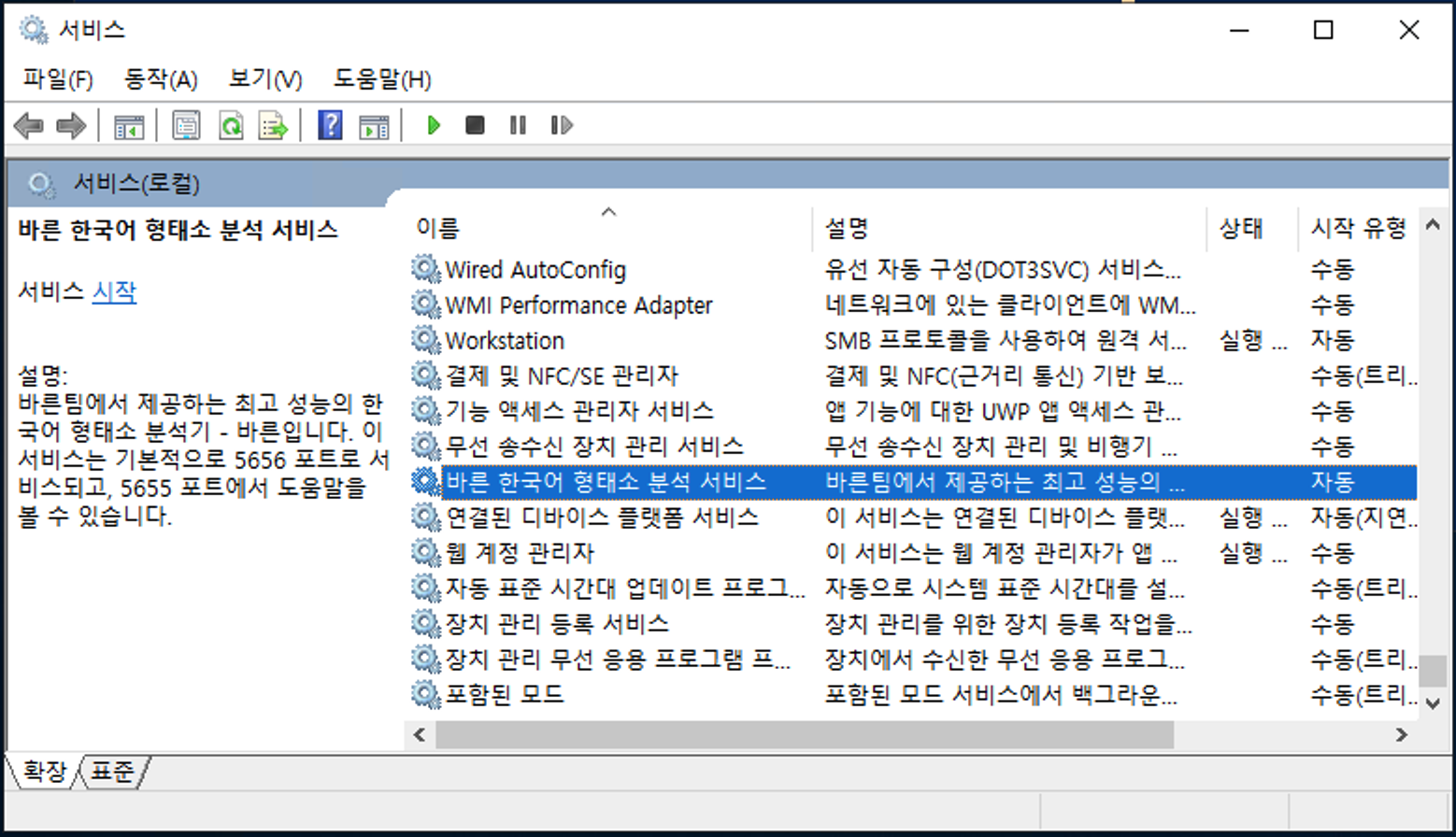
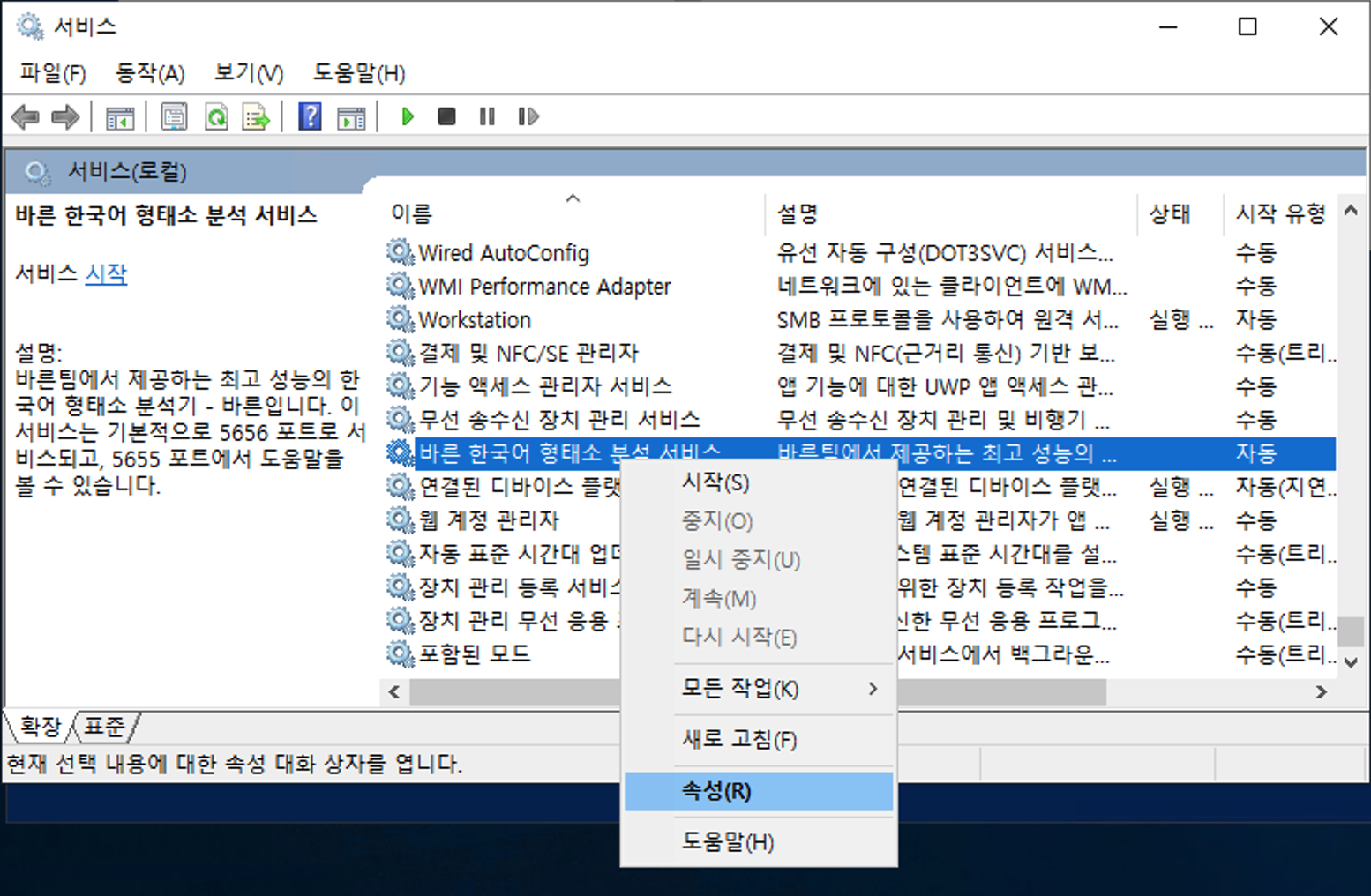
- To check the service properties, select
Bareun Korean Morphological Analyzer(바른 한국어 형태소분석기), right-click, and choose theProperties(속성) menu.
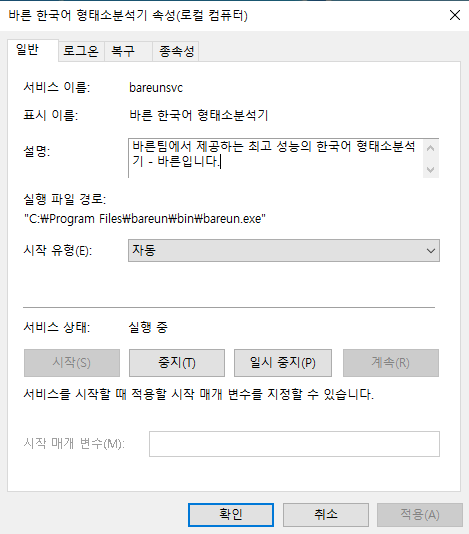
- The service properties are registered as follows.
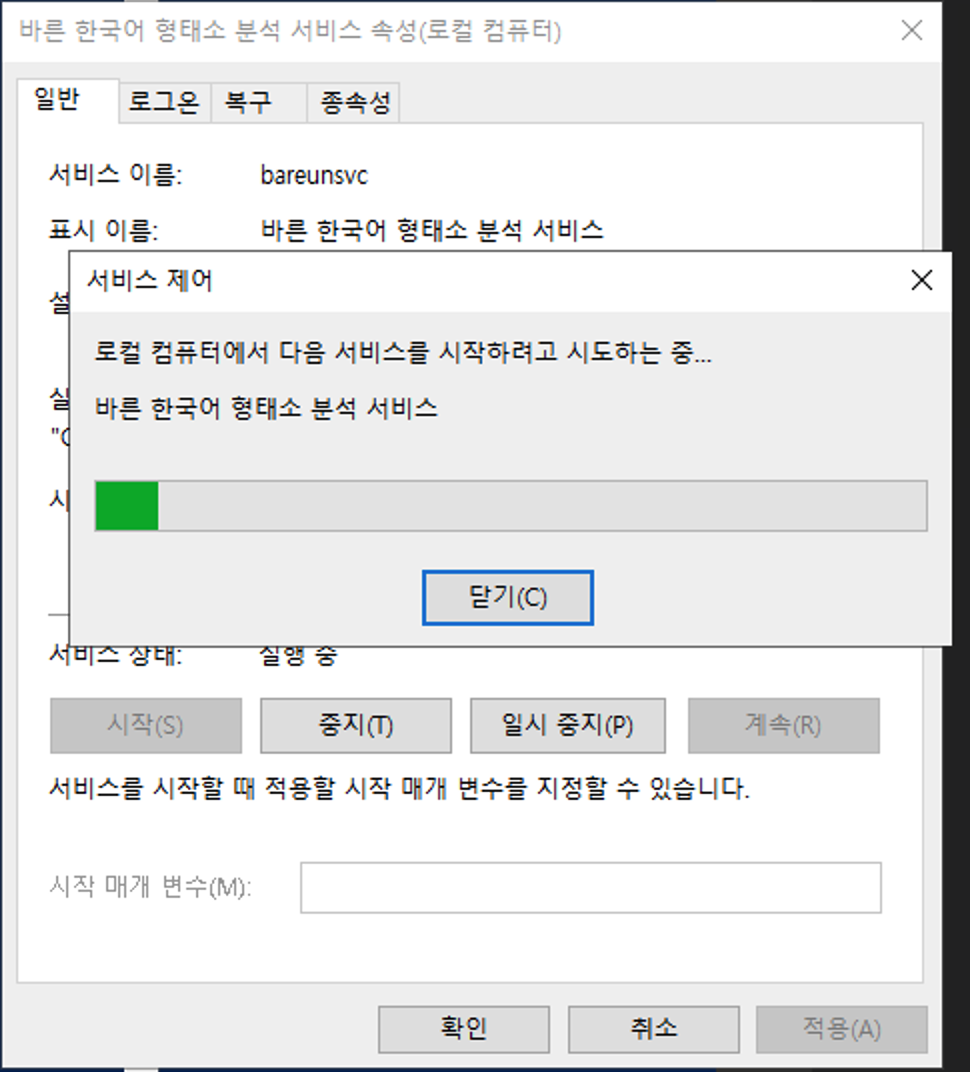
- On this screen you can stop or restart the service as needed. The figure below shows starting the service.
The net command
- To start the service, use
net start.
net start bareunsvc
- To stop the service, use
net stop.
net stop bareunsvc
Running or monitoring the server on macOS
- When you install with the package installer (.pkg) on macOS, the server starts automatically.
Monitoring the service
- In macOS Spotlight (shortcut
Command+Space), search forActivity Monitor(활성 상태 보기) and click to open it. - Search for
bareunat the top right, and you can see that the server is running normally, as in the figure below.

Stopping the service
- To stop the server later, enter the following command in the terminal.
sudo launchctl bootout system/ai.baikal.bareun
Restarting the service
- To restart the server, enter the following command with administrator privileges.
sudo launchctl bootstrap system /Library/LaunchDaemons/ai.baikal.bareun.plist